
Software built for landscaping crews.
Forty properties on the mowing route, and a bed install on Thursday. OrbitOps Pro packs the route so the same trucks cover more of it in fewer miles, and runs the project work off the estimate that won it.
Crew routing, installs run off the estimate, and one invoice a month.
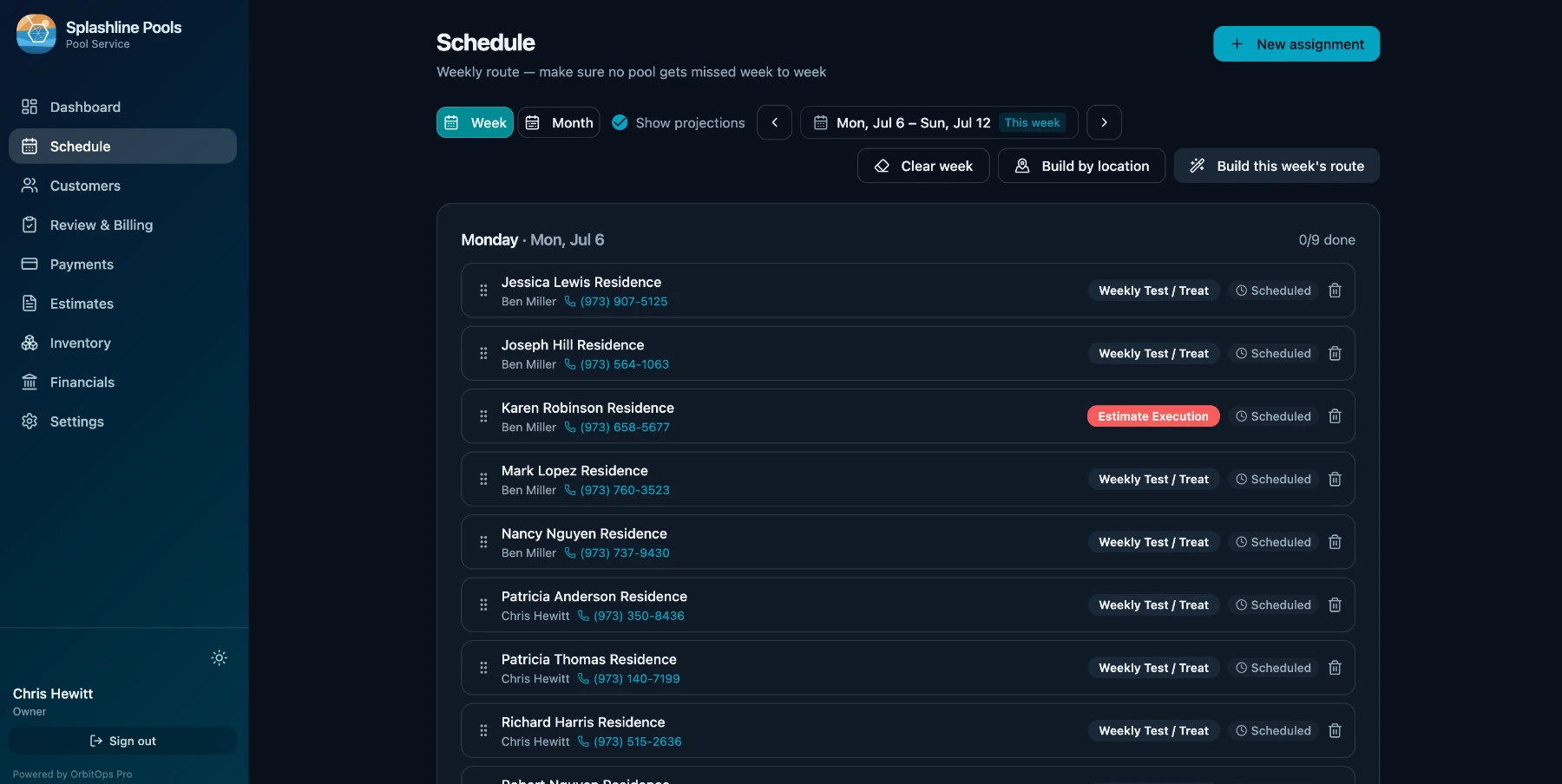
Landscaping is two businesses sharing a truck. One is a route: mowing, lawn care, the same properties on the same cadence, where the individual job is small, the schedule is enormous, and the difference between a good week and a bad one is measured in drive time rather than skill.
The other half is project work — a bed install, a planting, a pallet of sod, a load of material run out to twenty addresses — where the money is decided by what was quoted against what actually went in the ground.
OrbitOps Pro is built for both: crews rather than lone techs, days packed by geography, an estimate that becomes the job it was quoted as, applications recorded properly, and a month that closes as one invoice per property instead of forty separate ones.
Crews, not just techs
Most field-service software assumes one person, one truck, one job. A landscaping crew assumes three people on a trailer clearing ten properties before lunch.
Assign the day to a crew
Put a day's properties against a crew rather than an individual, and see the schedule split by who is running which route. Crew assignments are on every plan. The crew is stamped on the property the moment the visit starts and the visit carries its own duration, so the record says which crew took a property and how long they were on it — what you charge for that is your call when you bill.
Hours against the work
On Premier, techs clock in and out on their own screen and the hours land against the day's jobs — so the timesheet and the schedule are the same record.
Helpers never open the app
A crew member's hours come from the foreman's day, so a helper who never logs in still gets a real weekly timesheet — the PDF marks those hours as recorded via crew, which is the document that settles a payroll dispute. It replaces the paper timecard outright. Crews are captured on every plan; the timesheet and labor-cost views arrive on Premier. The capture starts on Signature, so upgrading later gives you the history rather than a blank slate.
Margin per truck, not a false loss on every helper
On Premier, a crew's revenue rolls up to the foreman running it. The members carry their real labor cost and no invented negative margin — so when you compare one truck against another you are reading the truck, not an artifact of how the day was staffed.
What a route actually costs
With the hours captured, Premier's analytics show labor cost by job and what each account costs you to serve — which is the number that tells you whether that cul-de-sac is worth keeping.
Cadences that repeat all season
Weekly or bi-weekly per property, set once. One click builds the week for every property due, across mowing and treatment alike and including the visits carried over from a week the weather took — so nobody rebuilds the schedule every Sunday for the whole season.
The week on paper, before the signal drops
Save offline copy turns the week into a PDF: every scheduled property, who it is assigned to, and the contact details for the customers on it. If a phone dies mid-route, the day still runs off the copy you already saved.
No drift on a quarterly cadence
Second Tuesday of the month, every three months, means exactly that — this year and next. The cadence math is month-native, so a quarterly or bi-monthly property lands on the same ordinal weekday all year instead of sliding a few days with every cycle.
The day that adds the least driving
For every property still waiting to be scheduled, OrbitOps Pro works out which day absorbs them for the least extra driving and names it before you commit. It is worked out on your own book, so there is no per-lookup cost — and it is choosing the day, not reordering the stops inside it.
The day arrives on the phone, already in order
The office builds the week. The tech opens one screen and works down it — and everything recorded on the way is what the invoice gets built from.
Open it and work down the list
Today opens on the stops in order, each with the customer, the visit type and the address, and a count of how many are done. One tap starts a stop, one opens it in Maps. Nobody is calling the office to ask what is next.
What they record is what you bill
Materials, readings and notes are captured at the stop while the tech is standing in it. The visit record is the billing record, so the invoice is built from what happened rather than reconstructed on Friday.
Billing and quoting from the driveway
A tech you trust can bill a stop as they finish it, and build an estimate while they are standing in front of the work. What they bill in the field is past the month-end sweep’s reach, so the same visit cannot also land on that customer’s monthly bill. The billing grant is per tech and yours to give. Quoting from the field is on every plan — the foreman standing in front of the work is the one who knows what it is. Writing the ordered scope onto that quote, photographing what is being quoted, and starting from a quote you have already written come in on Executive.
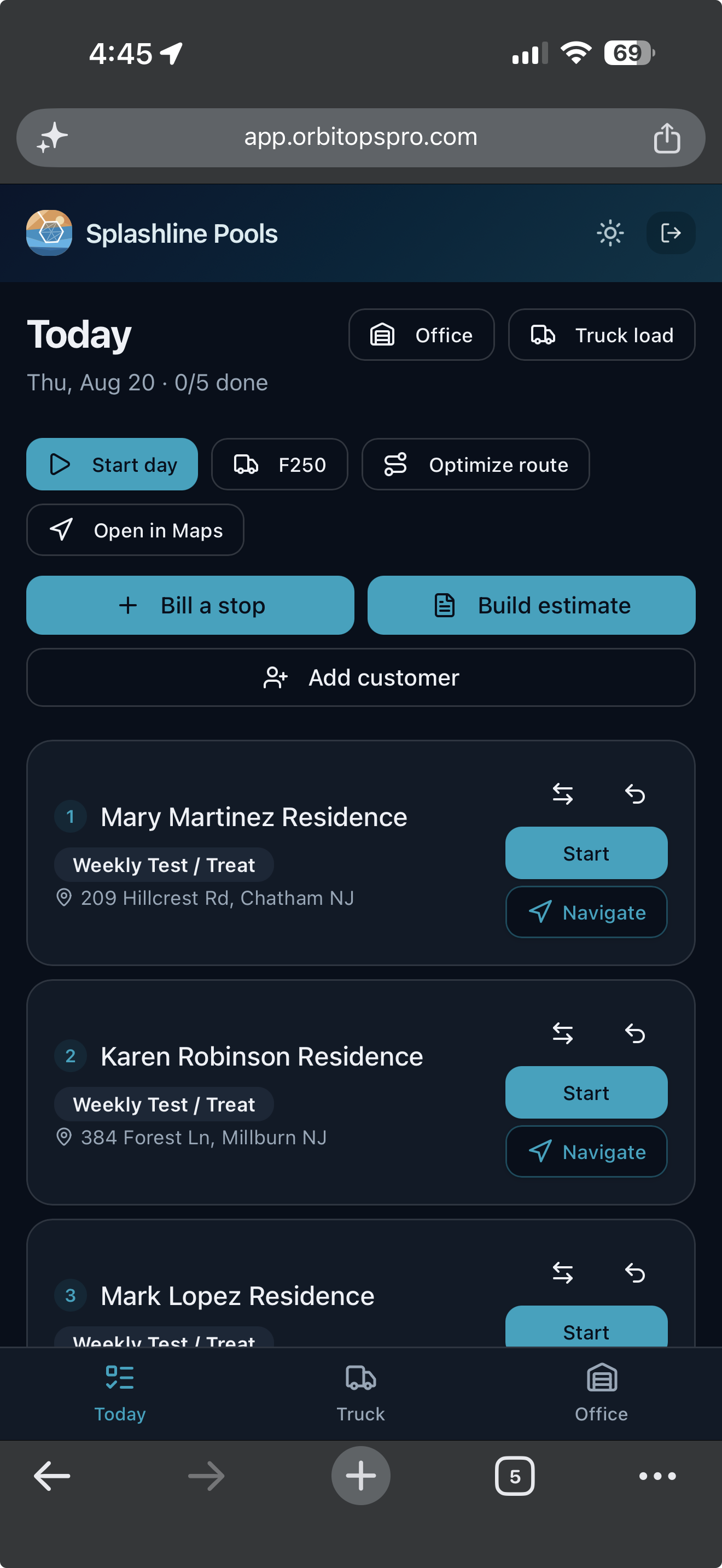
The same trucks, more stops, fewer miles
Ten minutes of driving between two properties burns fuel and an hour of crew time you have already paid for. Group the day tighter and the same two trucks clear more stops for fewer miles: the day costs less to run, and the time it gives back is capacity for work you would otherwise have hired for.
Cluster the day by location
Group a day's properties geographically so a crew clears one neighborhood before moving to the next, instead of criss-crossing town. Included on every plan.
Sequence and map it
On Executive and Premier, route optimization orders the stops within the day and draws the route on a map, so the crew leader is not deciding the order in the cab.
A delivery run is a route too
A truck of mulch going to twenty addresses is a day of stops like any other. Build it by location and the driver runs it off the same day list the mowing crews use — on every plan.
Validated addresses
Properties are checked as they are saved, on every plan — because one bad address is a crew driving to the wrong side of a subdivision.
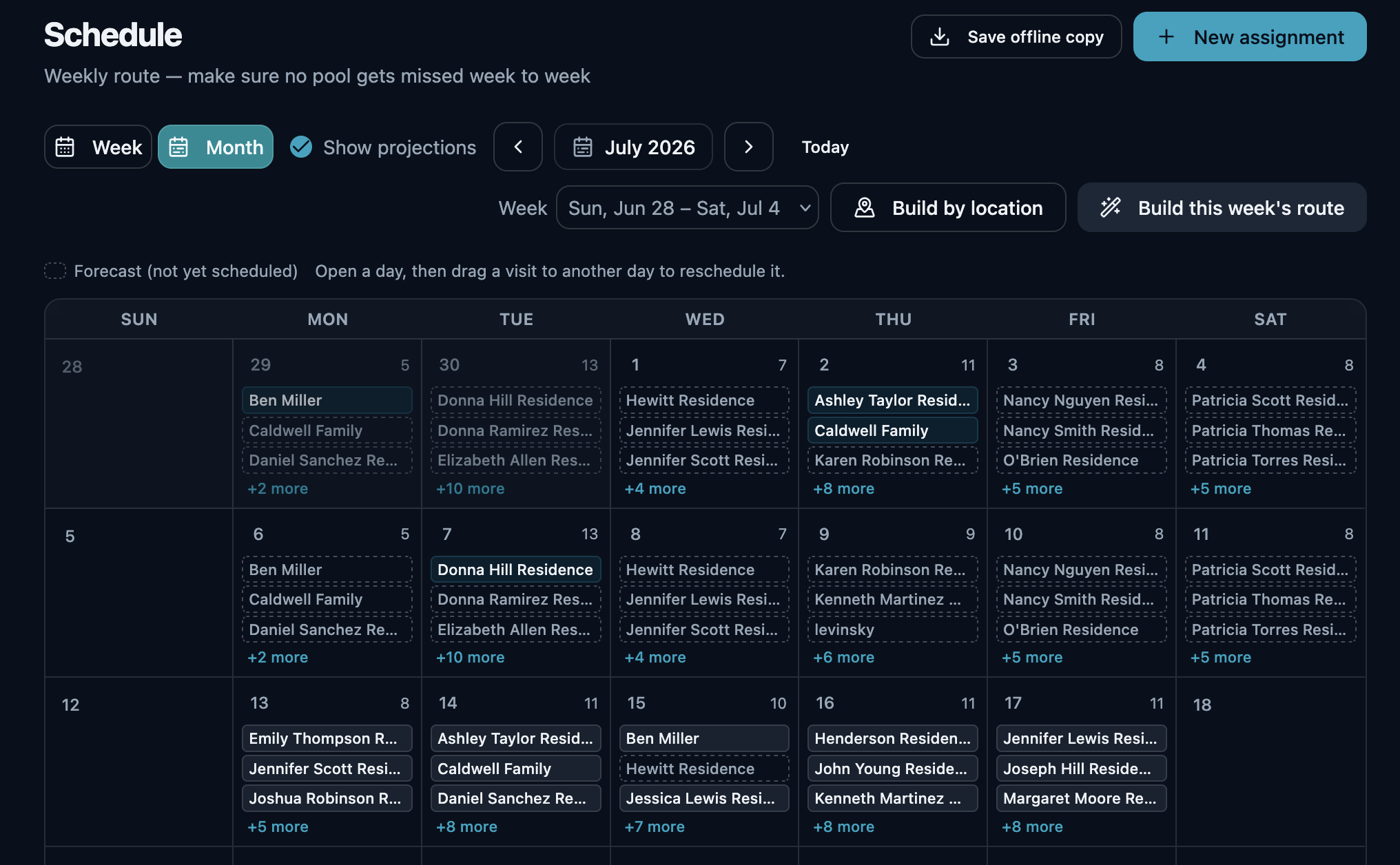
On Premier, the money-recovery reports go one step further and name the accounts that lose money once the drive time and the material are counted against what you bill them.
The install is where the margin is decided
A bed install, a sod job, a planting priced off a walk-through in March. The number goes out before anybody has put a spade in the ground, and what the crew finds when they get there is the difference between the margin you quoted and the one you kept.
Quoted against the property, with its material list
Quoting the job against the property, with the material it needs, is on every plan. On Executive the quote becomes a document: photograph the bed or the failing zone you are pricing, write the ordered scope — which prints on the customer’s copy and is handed to the crew as the checklist for the install — and start the next one by copying a job you have already quoted, rather than agreeing it in a driveway and having both sides remember it differently.
Approved becomes scheduled
Once the customer approves, the estimate becomes a scheduled job carrying its scope, and the crew opens the day with what was quoted. When it closes, the job is the invoice — and a one-off install can move onto a maintenance cadence from there.
What went in the ground, not what was on the sheet
On every plan, the approved estimate runs the job and whatever the crew adds on site is captured against it as a marked overage. Six more yards of mulch, the shrubs that had to be swapped, the extra pallet of sod — logged where the crew is standing, and on the bill instead of in somebody's memory.
The application visit is a different animal
A mow is a mow. A treatment is a regulated act with a product, a rate and a license behind it — and a bag of fertilizer that cost you real money.
Its own visit type
Application is a distinct visit type from Mowing, with its own checklist, so the crew running a treatment is not working from the same script as the crew cutting grass.
The product record, on every plan
The product and its EPA registration number, the dilution rate, the area treated, what it targeted and the applicator’s license — captured on the visit the crew is already filling in, and printed on the invoice. The record carries no price of its own, so a compliance entry can never bill twice. Application tracking is included on all three plans.
Spread becomes billed
On Executive and Premier, each logged material becomes an invoice line and draws down from truck or shelf stock with its cost attached. Fertilizer, seed and mulch stop leaving the trailer for free.
Reorder before the next round
On Executive and Premier, par levels flag what's short and purchase orders restock it from your supplier — useful when a treatment round means buying a pallet at a time. Book the delivery in against the order and the stock is on the shelf; a pallet that arrives in two drops is two deliveries against the one order, with the rest still showing as outstanding.
Buy by the case, sell by the piece
On Executive and Premier, one product entry can be bought by the case and sold by the piece. Order a case of concentrate, the tech logs one bottle, and the stock count and the price each move in their own unit — one product record, no mental arithmetic.
The delivery back in, in one press
The last arrow is the one most systems leave to you. When the order turns up, book it in against the purchase order that raised it: the stock lands on the shelf and the order marks off what arrived, in the same press. Nothing is counted twice — press it again on a bad signal and the second press moves nothing.
- Half now, the rest next week. A short delivery is recorded for what actually came, and the remainder stays open on the order. The next van is a second delivery against the same PO, not a correction to the first.
- You cannot receive more than you ordered. A line that would take the delivered count past what the order asked for is refused, not quietly absorbed.
- A wrong delivery is corrected, never rewritten. Undo one and it takes back exactly what that delivery put on the shelf — read from the record the delivery itself wrote, not recalculated from what the order says today. Nothing is deleted: the reversal is appended beside the delivery, so a delivery that arrived and was taken back stays two facts rather than becoming silence. Miscounted it? The original is kept and reversed, and a new one records what really arrived, linked back to the one it replaces — the same way an invoice is voided and reissued instead of edited.
- All of it, or none of it. If the fourth line on a delivery names a product you have since removed, the first three do not land either. There is no half-received order to unpick.
One invoice, not forty
Four cuts, a treatment and a cleanup is six pieces of paper if you bill per visit. Nobody wants to send that, and nobody wants to receive it.
A month, rolled into one
Compile the month's recurring visits into a single invoice per property, or bill per visit for one-off work — and mix both across the book. Included on every plan. Each customer has their own default, set on their record, so the choice is made once for that customer instead of job by job.
Sent with a pay link
The invoice goes out with a link the customer settles by card on Stripe's hosted checkout, and the funds land in your own Stripe account. Cash and checks get recorded against the same invoice.
Then closed in your books
On Executive and Premier, post one summary journal entry for the month to your own QuickBooks Online company — revenue, sales tax, receivables and cash, against the accounts you map. You trigger it; it sends accounting totals, not customer records.
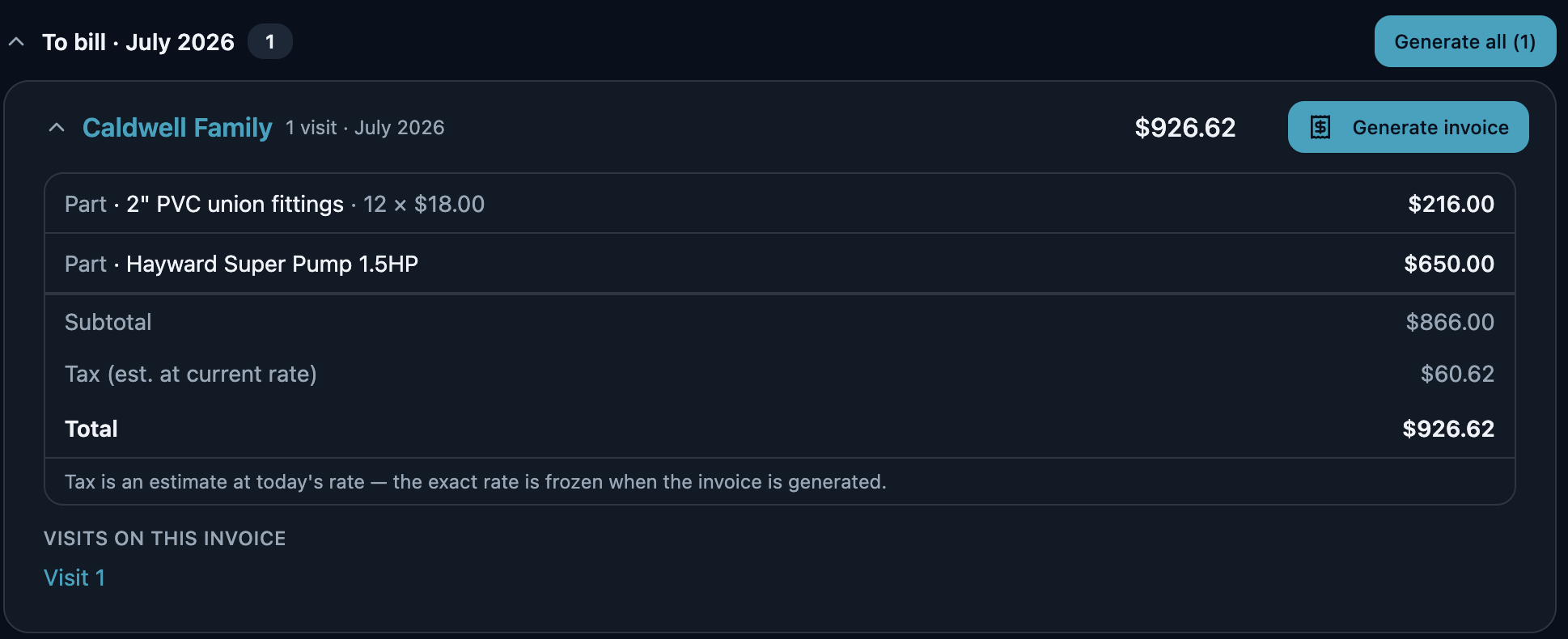
A tech you trust can be given the right to bill a job the moment they finish it. That visit lands past the reach of the month-end sweep, so it cannot also appear on the customer’s monthly invoice — not because somebody remembers to check, but because the two paths cannot both claim the same visit. The grant is per tech and yours to give.
See what each plan includesThe customers still waiting on something you meant to do
A crew writes up a failing irrigation zone on a Tuesday and nobody quotes it. A customer approves a bed renovation and it never reaches a crew’s day. These are not leads to chase — they are your own customers, waiting on work you fully intended to do.
- A repair your tech flaggedThe crew closed the visit, wrote down the zone or the bed that needs doing, and no quote has gone to that customer since.
- A visit that would bill nothingA visit closed, still waiting on your review, and carrying no charge at all — caught before it becomes a month-end invoice that says the same.
- Approved, never scheduledThey said yes to the quote. It never became a job on anybody’s day.
- A quote that went quietSent, and a week has gone by with no answer — long enough that a follow-up still reads as attentive rather than late.
- An agreement coming to its endThe term runs out inside the next two months and it does not renew itself. Agreements themselves are part of Premier.
- A property nobody has been toStill on your books, still marked active, and ninety days since anyone closed a visit for them.
Every one of these is read off records you already have — visits, quotes, line items, agreements. One line each, and one action each: start the quote, add the charge, book the job, send it again. Anything genuinely fine gets dismissed, and dismissing it is neither a snooze nor forever — the moment something new happens for that property, the row comes back on its own. The seventh list, warranties about to lapse, reads the warranty date on a part installed against a unit record — so it fills up for the trades that keep one.
And the local post you never get around to writing
The same section turns a job you have already finished into a short local update: the service, the kind of work, the town, the month and its season. No property’s name, no street address and no price can appear in one, because the facts a post is written from carry no such field. The town is in; the street is not. Here, the seasonal round, a finished install and a before-and-after are three of the six occasions it writes from.
Ready to copy to Google Business Profile, Facebook, Instagram or Patch. Each one’s length is checked before you copy — past Google’s 1,500-character limit is a problem to fix, past the point Facebook folds the rest behind “See more” is only worth knowing — and nothing is ever cut short for you. Hashtags appear only where the channel takes them.
Another fall cleanup wrapped up in Hanahan. Cutting the beds back and getting the leaves off before the first hard rain is the difference between a lawn that comes back in March and one that has to be repaired.
We do not post on your behalf and OrbitOps Pro holds no account of yours on any of them. You copy the words out and post them yourself.
What landscapers ask us
Can I quote an install and then run the job from that estimate?
Yes, on Executive and Premier. The install is quoted against the property with the material it needs, and once the customer approves it the estimate becomes a scheduled job carrying that scope. Whatever the crew adds on site — extra yards of mulch, another pallet of sod — is captured against the job as a marked overage, so it reaches the invoice instead of being remembered later.
Can I assign work to crews rather than individual techs?
Yes, on every plan. Crew assignments let you put a day's properties against a crew and see the schedule split by who is running it, which is how a multi-truck lawn operation actually works. The visit also records which crew ran it and how long they were on the property.
How does OrbitOps Pro cut the driving between properties?
Build by location clusters a day's properties geographically so a crew clears a neighborhood before moving on, and it is included on every plan. On Executive and Premier, route optimization sequences the day's stops and draws them on a map.
Are mowing visits and application visits handled differently?
Yes. Landscaping ships with Mowing, Application, Cleanup, Irrigation Service and Install as distinct visit types, each with its own checklist, and you can rename or add to them. Application visits additionally carry the applied-product record.
Does it keep a record of what was applied?
Yes, on every plan. Application tracking records what product went down, how much, where, what it targeted and under whose license, and prints it on the invoice. Check the detail you capture against your own state's requirements.
Will the fertilizer and seed my crews spread get billed?
On Executive and Premier. Crews log the material spread on the visit; each logged item becomes an invoice line and draws that quantity down from truck or shelf stock with its cost attached, so the product going onto lawns stops going out unbilled.
Can I bill a month of visits as one invoice?
Yes, and most lawn operators do. Roll a month of recurring visits into a single invoice per property, or bill per visit for one-off work — you can mix both across the book. Each customer has their own default, set on their record, so the choice is made once for that customer instead of job by job. Either way it goes out with a pay link the customer settles by card, on every plan.
Can I see what a crew's hours actually cost me?
On Premier. Techs clock in and out on their own screen, the hours land against the day's work, and the analytics show labor cost by job and what each account costs to serve.
Do my helpers need their own login to get a timesheet?
A crew member does not need a login. Their hours come from the foreman's day and land on a weekly timesheet PDF marked as recorded via crew — the document that settles a payroll dispute. Crews are captured on every plan; the timesheet and labor-cost views arrive on Premier, and the capture starts on Signature, so upgrading later gives you the history rather than a blank slate.
Can a tech bill a job at the property without it landing on the monthly invoice too?
Yes. A tech you trust can be given the right to bill a job the moment they finish it, and that visit lands past the reach of the month-end sweep — so it cannot also appear on the monthly invoice. The two paths cannot both claim the same visit. The grant is per tech and yours to give.
Your customers didn't sign up for our software — you did. Their names, addresses and phone numbers stay in your account. Your books get a month of totals rather than your client list, and our own support console can't display who they are.
What leaves your account →Run your landscaping business, not your software.
Create your account and get set up in your trade. Scheduling, invoicing and card payments are included in every plan.
Questions first? Talk to us.
Email support@orbitopspro.com to chat with us.